Understanding the Jupyter kernel and notebook execution order
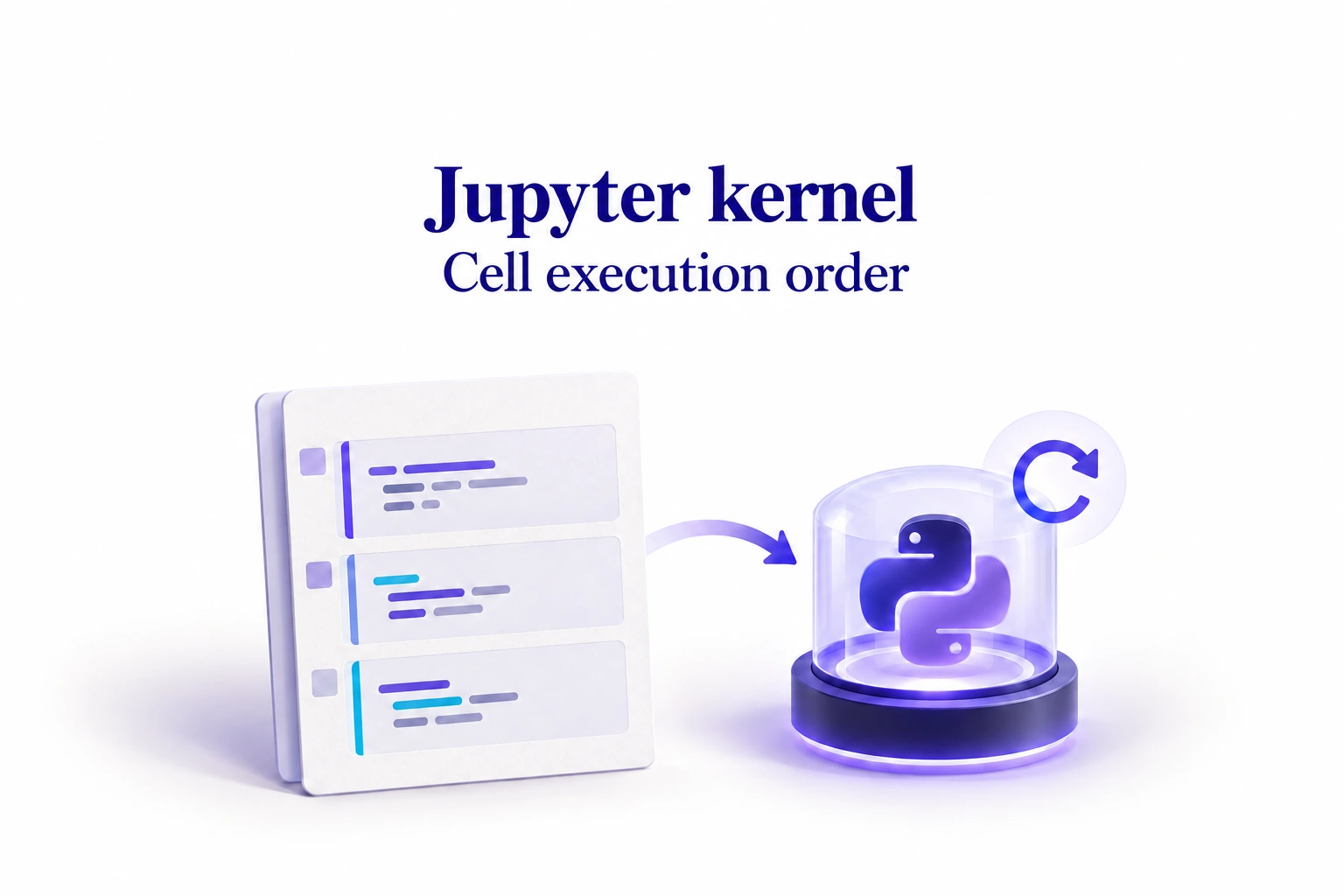
Why does a notebook still show an old result, or fail after a restart? The Jupyter kernel keeps the variables created by cells you have already run. A cell’s result therefore depends on both its code and the state of that memory when you run it.
A notebook brings code cells, text and outputs together in one document. You will see how Python, .venv and ipykernel make its cells run, then learn to distinguish the saved file, kernel memory and displayed results. The examples use Python’s standard library to explore cell dependencies and check calculations after a restart.
Before you begin
If your first notebook does not run yet, return to the guide to install Python and set up Jupyter in VS Code. To review assignment, sum() or lists, read Python basics. The guide to mutability and copies complements this topic, although the mechanism here also affects a single number that has already been calculated.
Contents
Python, .venv and ipykernel: how does the Jupyter kernel work?
When VS Code asks you to select a kernel, it often shows an environment name alongside a Python version. To understand this choice, follow the connection between the document you open, the tools installed on disk and the program that runs your cells.
Python: the language and the program that runs it
Python is a programming language: its rules let you write instructions such as assignments and calculations. To execute them, your computer uses a program called the Python interpreter. The official Python tutorial explains how to use it.
A package is a collection of software components you can install to add functionality. One computer can have several Python interpreters and separate sets of packages. You therefore need to know which Python interpreter starts your Jupyter kernel.
.venv: the project’s Python environment
A virtual environment provides a Python interpreter and the packages installed for a project, isolated by default from those in other environments. In our projet-ia folder, it lives in a subfolder named .venv. Think of it as the tools prepared for this project, available on disk even when the notebook is closed.
The names are similar but refer to different things: venv is the Python module used to create virtual environments; .venv is a conventional folder name. You could give that folder another name. The Python documentation on virtual environments describes this structure.
ipykernel: letting Python communicate with Jupyter
ipykernel is a Python package that provides the IPython-based Python kernel for Jupyter. It handles the exchanges with the interface: receiving execution requests, running code and returning outputs or errors. In VS Code, the Jupyter extension uses these exchanges to show results below your cells.
To start a Jupyter kernel with the Python in your .venv, ipykernel must be available in that environment. Installing it for another Python interpreter is not enough. The IPython documentation on kernels and environments explains this relationship.
The kernel: a running Python process with its own memory
A process is a program that is running. In this example, the Jupyter kernel is a Python process started with ipykernel from the selected environment. The environment provides the installed tools; the kernel uses them during your session and keeps the variables created by your cells. The Jupyter definition of kernels explains that they run independently of their interfaces.
When a cell defines heures_etude, that variable becomes available in the active kernel’s memory. It is not stored as a new file inside .venv. Restarting the kernel creates a new computing session; the environment folder and its packages stay on disk. You then need to rerun the cells that define your variables.
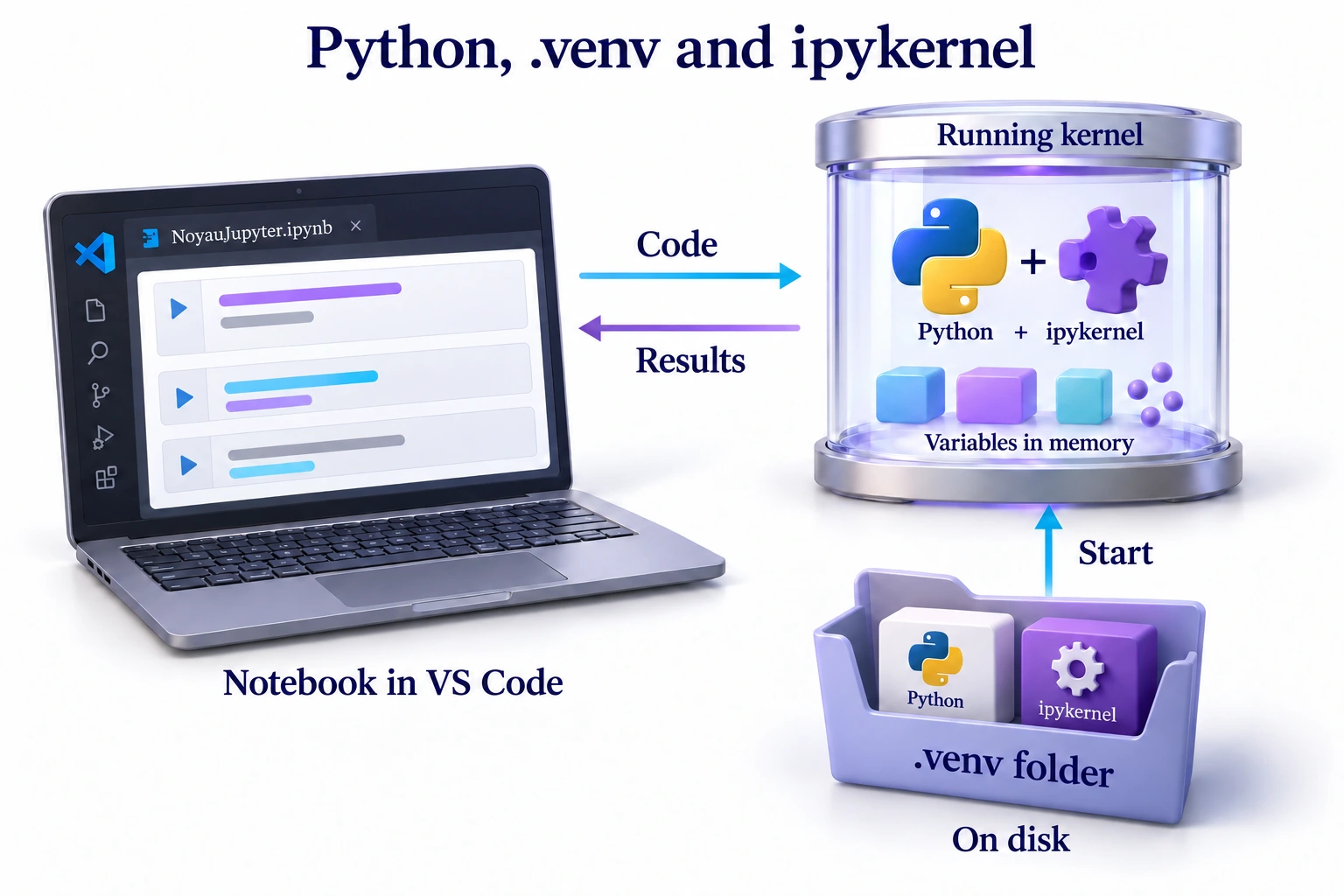
From clicking Run to seeing a result
- In the notebook’s kernel picker, you select the project’s Python environment. VS Code can then start that environment’s Python with
ipykernel. - You run a cell. The interface sends its code to the active kernel.
- Python executes the instructions using the environment’s packages and the variables already present in that session.
- The Jupyter kernel returns outputs or an error message. VS Code displays them below the cell.
- The kernel remains available for subsequent cells: its variables are available for as long as the session retains them.
Selecting the right kernel in VS Code
Open the kernel picker at the top right of the notebook. If the environment you need is absent from the recent choices, select Select Another Kernel…, then Python Environments, and choose the project’s .venv. The VS Code kernel guide describes these options.
The picker may show an environment even when ipykernel is not installed in it. If VS Code reports this missing package, set up that environment using the Python and Jupyter installation guide. The VS Code Jupyter extension and the Python package ipykernel serve complementary roles. The extension provides the notebook interface in VS Code; ipykernel runs the kernel with the selected Python interpreter.
Keep these roles in mind: the notebook contains your cells, .venv provides the project’s tools, ipykernel enables communication with Jupyter, and the kernel executes code while retaining session state.
Jupyter kernel: separate the file from memory
The notebook is the document saved on disk; the Jupyter kernel executes its code in a computing session. The table distinguishes the file’s contents, the interface that displays them and the kernel’s state.
| Component | Role | What to check |
|---|---|---|
The .ipynb file | Stores cells, their metadata and the outputs you save. | A displayed output may come from a previous run. |
| The VS Code editor | Displays the document and sends your execution requests. | The order of cells on the page does not determine the order of your clicks. |
| The Python kernel | Executes instructions and keeps session objects. | A variable may exist in memory even if its definition is no longer visible in the file. |
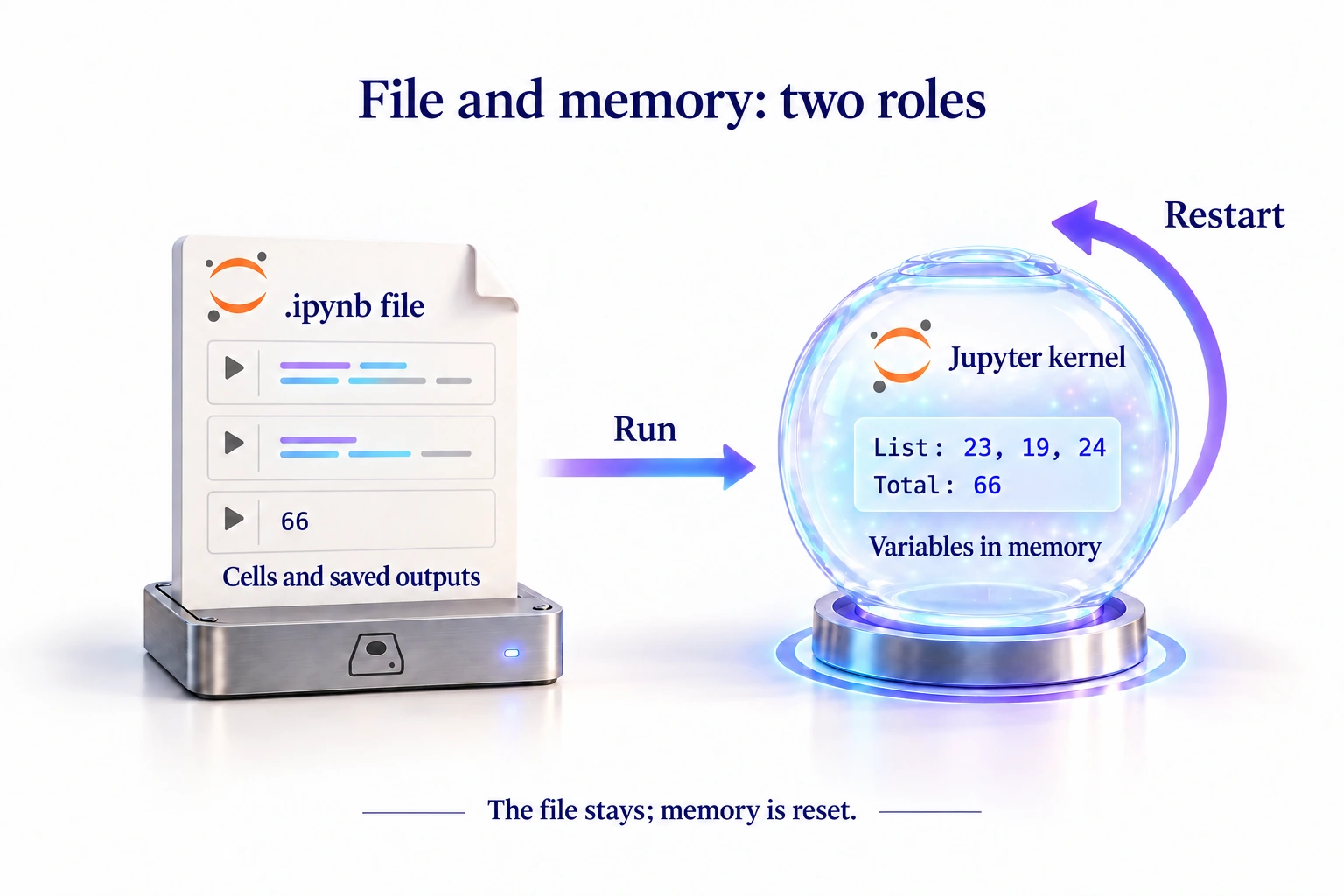
Two notebooks can use the same .venv, and therefore the same tools, while each runs its own Jupyter kernel. In that case, variables created in one are unavailable in the other: each session has its own memory.
What happens when you reopen a notebook?
Suppose you save the notebook after obtaining 66, then reopen it with a new kernel. The number can remain visible below the cell because it is part of the saved outputs. However, the names heures_etude and total_heures must be defined again before you use them.
A saved output shows the result of an earlier run. To reproduce the calculation, rerun the code with the required resources. When sharing a notebook, keep outputs that help readers and specify the files and packages needed to execute it. The official notebook format describes what the file stores.
Run cells in dependency order
A cell depends on another when it uses a value that the other cell must produce. Having a definition earlier in the document is not enough: you must run the cell that creates the value.
The three values 23, 19 and 24 come from the first three rows of Hours_Studied in StudentPerformanceFactors.xlsx, sheet Données. Source: Student Performance Factors on Kaggle. They are written directly into the cells, so you do not need to move the workbook or install an Excel library for this exercise.
Download the Jupyter notebook and its explained exercise as a ZIP file. Extract it into projet-ia, open NoyauJupyter.ipynb in VS Code and select your .venv kernel. The notebook contains the same code and outputs as the examples below.
# Identify the Python version running this notebook.
import sys
print("Python version:", sys.version.split()[0])
Python version: 3.14.8# Use the three verified Hours_Studied values.
heures_etude = [23, 19, 24]
print("Hours:", heures_etude)Hours: [23, 19, 24]# Calculate the total from the current list.
total_heures = sum(heures_etude)# Display the value stored in the kernel.
print("Total:", total_heures)Total: 66After the Python-version check, the data cell creates the list heures_etude. The calculation cell computes its sum and assigns it to total_heures. The display cell shows that number: 23 + 19 + 24 = 66.
The number in square brackets is an execution count. It records the position of the cell’s latest execution within the session in which it ran. It can be saved in the file alongside outputs. Out-of-order counts can reveal execution that differed from reading order; increasing counts alone do not guarantee up-to-date results.
What happens if you run a cell too early?
Call the cell that creates the list A, the one that calculates the total B, and the one that displays it C. B uses the list from A, then C uses the total from B. These letters identify the diagram’s steps; they are separate from execution counts.
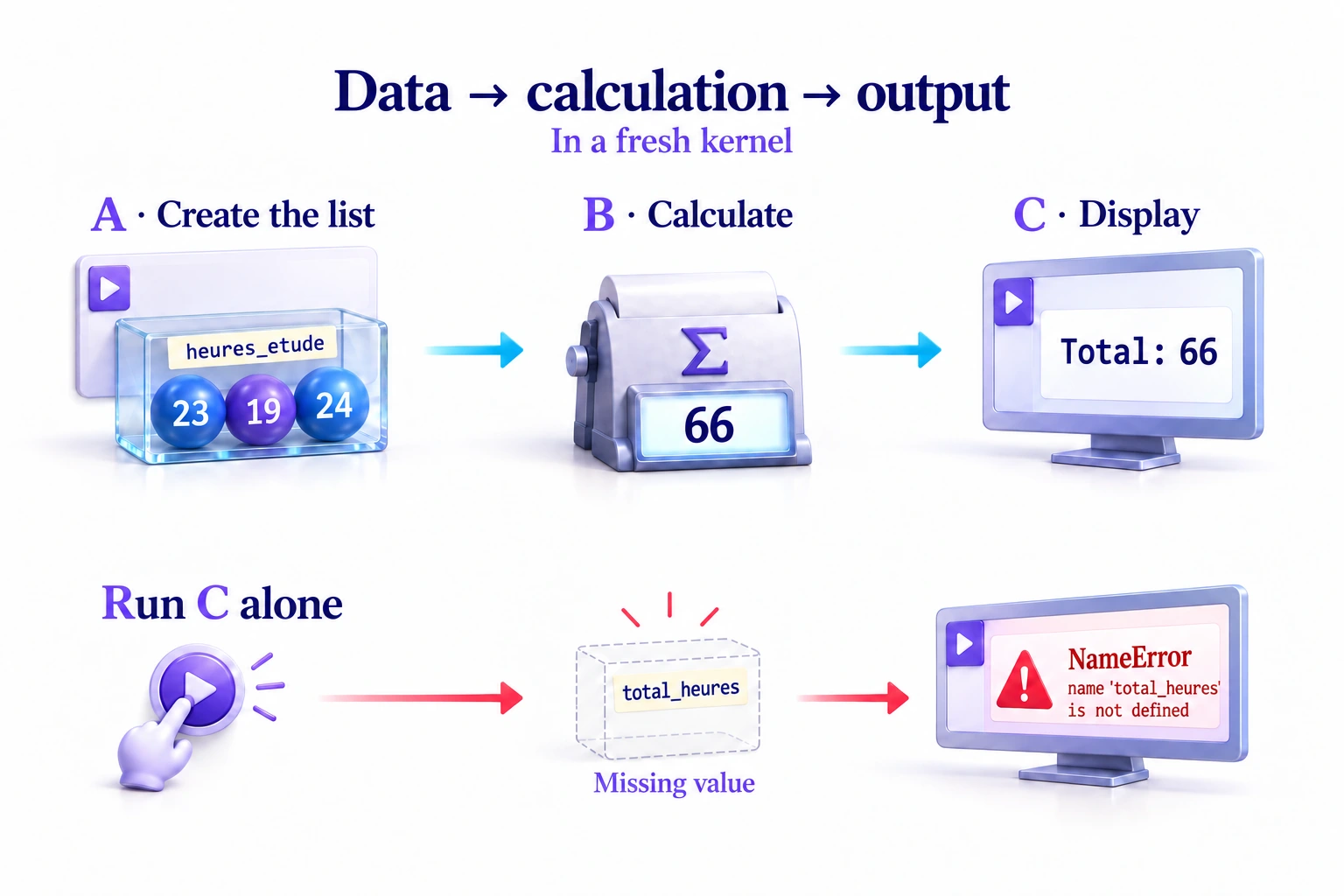
Case 1: you run C before calculation B
Restart the kernel, then run only C, the display cell. For this experiment, leave A and B unexecuted. Python tries to read total_heures, but that name does not yet exist in the new session.
# Display the value stored in the kernel.
print("Total:", total_heures)NameError: name 'total_heures' is not definedHere, NameError means that total_heures is undefined. The Jupyter kernel executes the requested cell; it does not automatically run B to produce the missing total.
Case 2: you run B before data cell A
Restart the kernel again, then run only B. This time the calculation needs the list heures_etude, which A has not yet created.
# Calculate the total from the current list.
total_heures = sum(heures_etude)NameError: name 'heures_etude' is not definedThe error now concerns heures_etude. Without that list, Python cannot calculate the sum, so the assignment to total_heures never happens. Running C next would also fail because the total is still undefined.
Case 3: you run A, then B, then C
Start with a fresh Jupyter kernel and run A, B and C. A creates [23, 19, 24]; B calculates and stores 66; C displays Total: 66. Each cell now finds the value it needs.
An existing kernel may still contain variables from earlier experiments. A cell run too early could then display a number instead of raising an error. The next experiment shows why the absence of an error is not enough to validate a calculation.
Why an old result can still appear
total_heures = sum(heures_etude) calculates the sum using the list available when you execute the instruction. The resulting number remains assigned to total_heures. Changing the list later does not trigger a new calculation.
Keep only the first two observations, then display the stored total without rerunning its formula.
# Keep only the first two observations.
heures_etude = heures_etude[:2]
print("Current hours:", heures_etude)Current hours: [23, 19]# This instruction does not recalculate the total.
print("Stored total:", total_heures)Stored total: 66The list is now [23, 19], while total_heures is still 66. Both names exist, so Python can display them without an error. The stored total was calculated from the previous three-value list.
Rerun the calculation to bring the total into line with the current data.
# Recalculate the total after changing the input.
total_heures = sum(heures_etude)
print("Recalculated total:", total_heures)Recalculated total: 42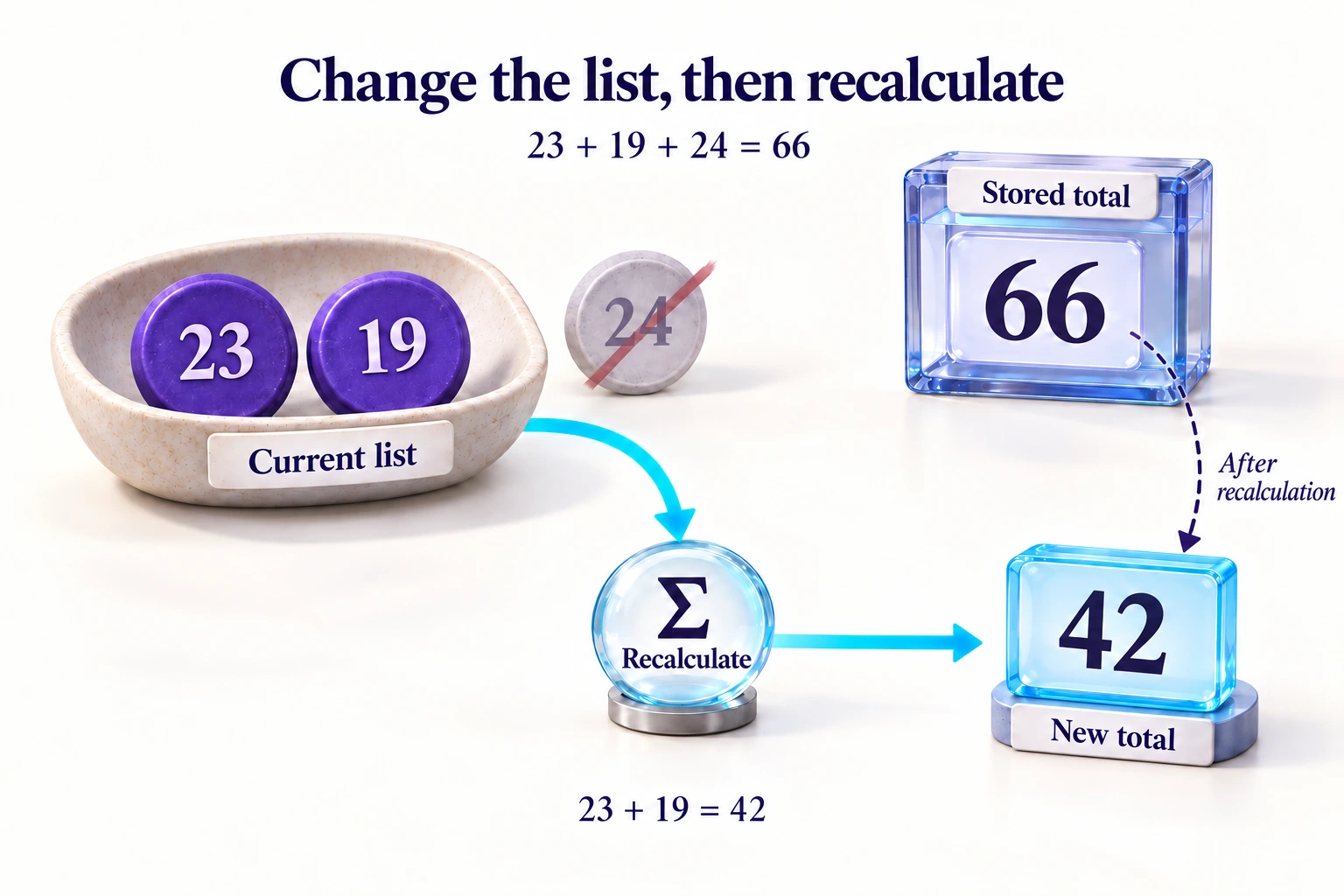
Recalculation gives 42, or 23 + 19. The same mismatch occurs if you change the data cell’s list to [23, 19], rerun the preparation and display cells, but skip the calculation cell.
Restart, interrupt or clear outputs
These commands serve different purposes. In VS Code, you can find them in the notebook toolbar or its menu: Restart, Interrupt and Clear All Outputs.
| Action | Effect | Limitation |
|---|---|---|
| Clear outputs | Removes visible results from the document. | Kernel variables remain available. |
| Interrupt | Requests that the current computation stop. | Does not undo instructions already executed; state may have been partially changed. |
| Restart the kernel | Resets the computing session, including its variables and imports. | Does not delete the saved file or installed packages. Old outputs may remain visible. |
| Run All | Runs cells in document order. | Does not, by itself, ensure that the Jupyter kernel was reset beforehand. |
Deleting a cell from the document does not remove objects it has already created in the Jupyter kernel. Those objects may remain available until a restart, hiding a dependency that is no longer visible in the file.
Check the notebook in a fresh kernel
Before sharing a notebook, check that it works using the cells and resources you provide. Restarting and then running every cell can reveal, for example, a variable defined in a deleted cell.
- Save the current code with Ctrl + S.
- Check the kernel selected at the top right and restart it.
- Use Run All, starting from the first cell.
- Check the outputs. If a cell fails, find the first error and correct its cause before repeating the procedure.
- Press Ctrl + S again to save the notebook with the outputs you have just checked.
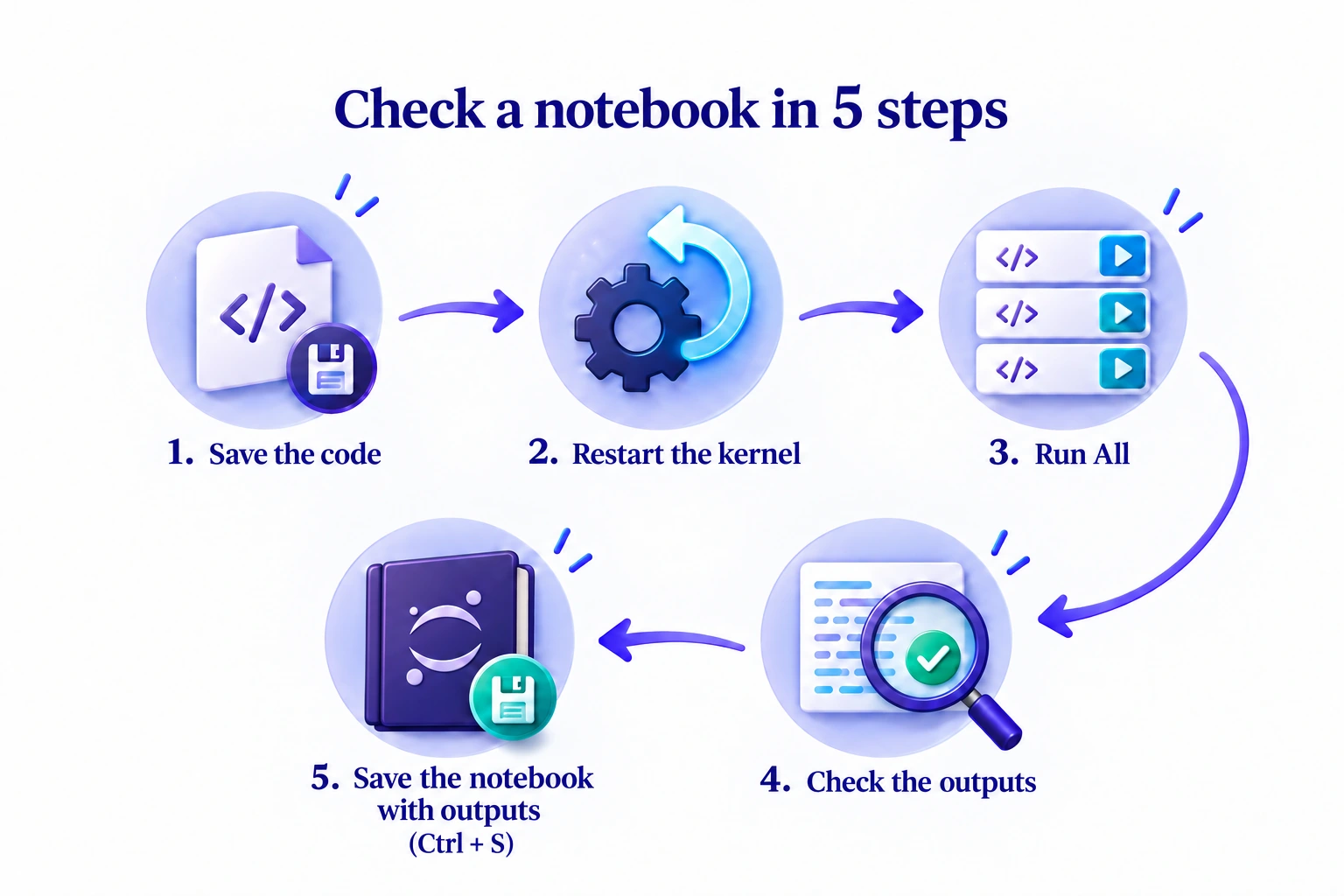
Step 5: save the notebook with its outputs
An output is what a cell displays after execution: text, a number, a table or a chart. At this final step, save the .ipynb file again so that it retains the code and the outputs you have just checked.
Take the cell that displays Total: 66. Run it, save the notebook, close the document and reopen it: you can still read Total: 66 below the cell. That text is a record of execution stored in the file, as described in the notebook format documentation.
Keeping that display does not save kernel memory. If you start a new Jupyter kernel, you must recreate total_heures by running the data preparation and calculation cells. The file lets you read the previous result; rerunning the code lets you reproduce it.
Exercise: find a missing dependency
Restart the kernel and predict what will happen if you run only print("Total:", total_heures). Will total_heures be defined in the kernel? Run that cell without the preparation cells. Explain what would have changed if you had only cleared the outputs.
Then write a self-contained cell that defines the three initial values, calculates their total and displays it. It must display the same result each time you run it, without relying on a variable prepared elsewhere.
Show the solution and explanation
After the restart, total_heures is undefined, so Python raises NameError. The last line of the message is shown below. The full error trace, called a traceback, also identifies the cell involved.
print("Total:", total_heures)NameError: name 'total_heures' is not definedClearing outputs without restarting leaves existing variables in memory. If total_heures was already defined in the active kernel, the cell would have displayed its latest value without recalculating it. If the name had never been defined, running the cell would still have raised NameError.
This cell brings together the data, calculation and display. Its result does not depend on a variable prepared elsewhere.
# Keep the input and its calculation together to avoid a hidden dependency.
heures_etude = [23, 19, 24]
total_heures = sum(heures_etude)
print("Verified total:", total_heures)Verified total: 66This solution checks the exercise’s small calculation. For a notebook with several cells, apply the same reasoning to all their dependencies.
What to check when the notebook behaves unexpectedly
| Symptom | Possible cause | First check |
|---|---|---|
NameError | A definition cell has not run, a name changed, or there is a typo. | Check the name and run the cell that defines it. |
| Old result without an error | An input changed, but its dependent calculation was not rerun. | Recalculate the affected results, then test in a fresh kernel. |
| Import error | The selected Python lacks a package, or the wrong kernel is selected. | Check sys.executable and return to the installation guide. |
| Computation stays busy | A long calculation or a loop that does not terminate. | Interrupt, then inspect the cell before running it again. |
| Output remains visible after restart | A result was saved in the document. | Rerun the cell; its displayed output does not prove that its variables exist in the Jupyter kernel. |
Key points
.venv supplies the project’s Python and packages; ipykernel lets that Python work as a Jupyter kernel. The kernel keeps session variables, while the notebook file stores cells and saved outputs. A result can therefore remain visible even when a new kernel has none of your variables. Run cells in dependency order and rerun affected calculations after a change. Before sharing the document, restart the kernel, run everything, check the outputs and save.
Further reading
- Jupyter: the role of kernels and ipykernel.
- Jupyter Notebook: running code and restarting the kernel.
- VS Code: cells, execution commands and output management.
- nbformat: what a notebook file stores.
- Student Performance Factors: the source of the example values.
- Python: using the interpreter.
- Python: understanding virtual environments.
- IPython: installing a kernel in a Python environment.
- VS Code: selecting a notebook kernel.
