Practise with mlwebapp
Free Python tools for learning
Free Python tools to try code, observe what happens and understand the concepts explained in the articles.
Python lab: cells and memory
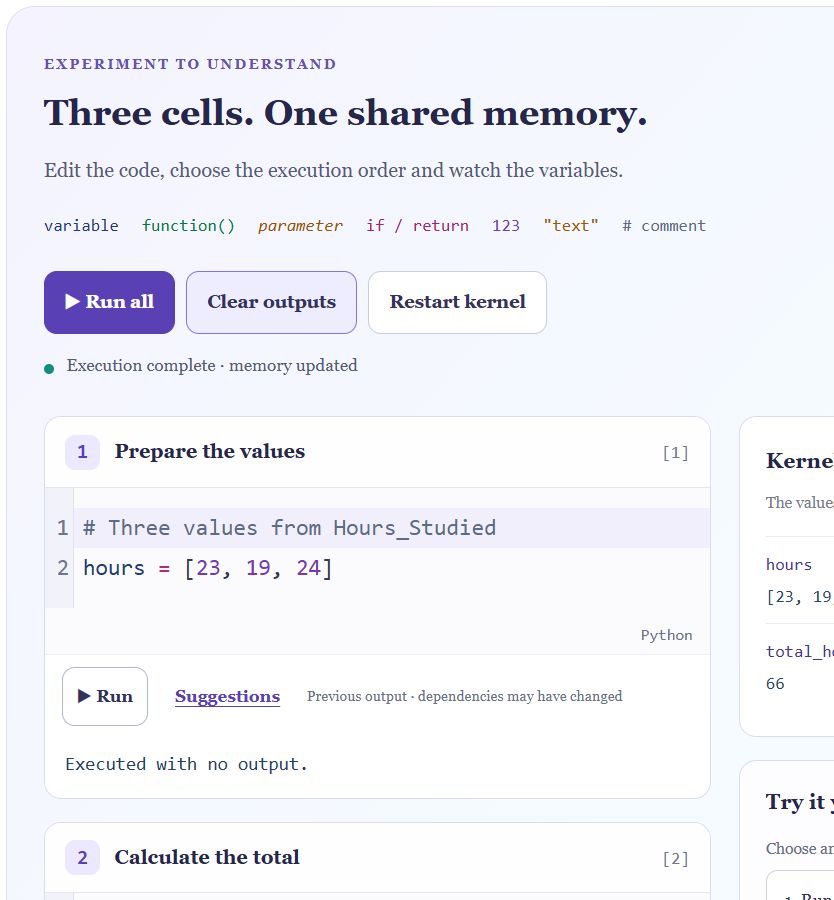
Why does a cell work after another cell, but fail after a restart? Edit three Python cells and observe the available variables, results and errors directly.
The lab offers code completion and four guided experiments. It runs in your browser, without an account or a local Python installation.
Open the Python labClick Run in the lab: Python downloads automatically on the first execution. An internet connection is needed for this download; the cells run in your browser.
Four experiments with these Python tools
Run in order
Create a list, calculate its total, then display it. Observe how the cells share the same variables.
Run a cell too early
Try to use a variable that does not exist yet. The lab displays the error and explains what to do next.
Recognise an outdated result
Change the input values without rerunning the calculation. Compare the modified list with the total still held in memory.
Distinguish clearing from restarting
Clear the outputs, then restart the kernel. Check which action preserves variables and which one removes them.
Choose a tool that matches your task
This first tool helps you understand how cells work. It supports short exercises with variables, built-in functions and errors. To save a notebook, work with files or install libraries, use your usual Python environment. The lab does not save your work automatically.
Python lab preview
Connect these experiments with the detailed explanations: Understand the Jupyter kernel and execution order