Cells, variables and execution order
Python lab: understand notebook memory
This Python lab runs real code cells and shows their shared memory. Edit the code, trigger an error and learn how to correct it.
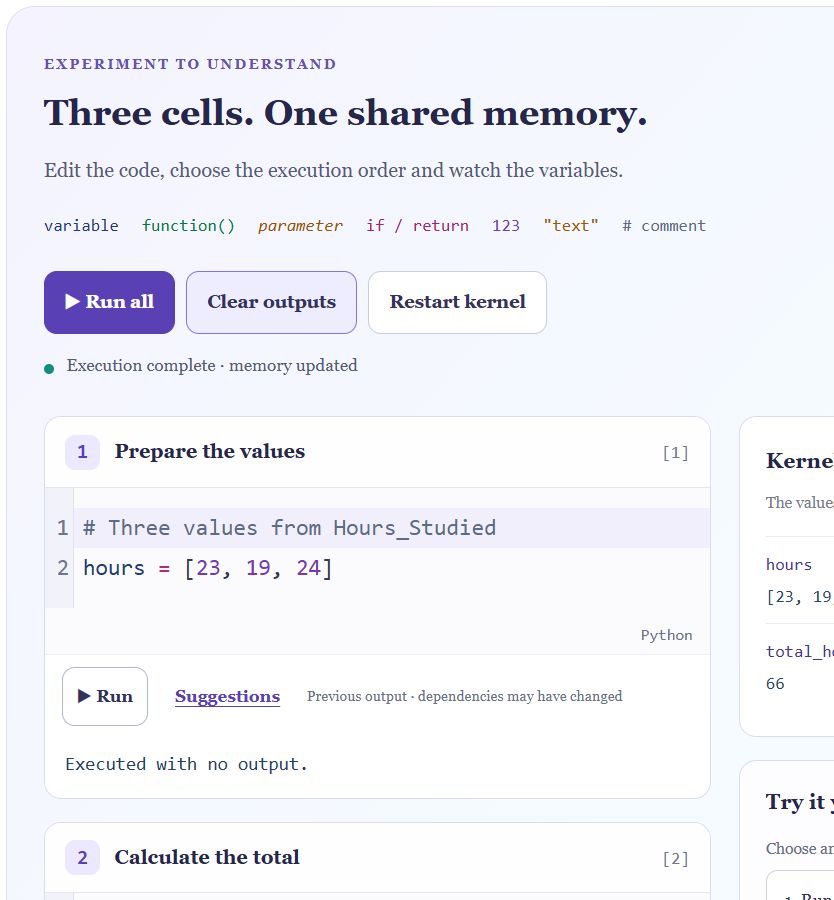
Click Run below a cell, or choose Run all. Python loads automatically on the first execution. The number in square brackets shows execution order, not the position of the cell.
Free, with no registration. The first load may take a moment. Your code is not saved: keep a separate copy of anything you want to retain.
Understand the Python lab controls
A cell is a block of code that you can run separately. The kernel is the Python session that keeps the variables: the three cells in this lab share the same memory.
- Run all runs cells from top to bottom and stops at the first error. This action does not restart the kernel.
- Clear outputs removes displayed results while preserving the variables.
- Restart kernel clears memory. An old output can remain visible; it does not prove that the variable still exists.
The values 23, 19 and 24 come from the Hours_Studied column in the dataset Student Performance Factors. You use them directly here: there is no data file to download.
Code completion to help you explore Python
Suggestions offers keywords, built-in functions and names found in the code. Variables that are actually available are labelled in memory. A name suggested from the text may still be missing from the session until its cell has been executed.
What the lab preserves and its limits
Cells run in your browser, in a space isolated from the website. They are not sent to the WordPress server. On the first start, the engine downloads from jsDelivr. The lab does not save notebooks or load additional packages automatically. Execution exceeding eight seconds is stopped and its session cleared.
Python lab preview
Connect these experiments with the detailed explanations: Understand the Jupyter kernel and execution order