Create a QR code with Python in 5 statements
Creating a QR code with Python turns a link or a piece of text into an image you can share. In this article, you will use Segno, a Python library for QR codes. The example has five statements: you can edit the code, run it on this page and download the image it produces.
The starting QR code contains the address https://mlwebapp.com/. Scanning it with a phone retrieves that address. You can replace it with your own link or a short message. The content is encoded directly in the image: changing it requires a new QR code.
Before you begin. You need a recent browser and an Internet connection. Python loads the first time you click Run code. You do not need to install Python on your computer to use the editor below.
Contents
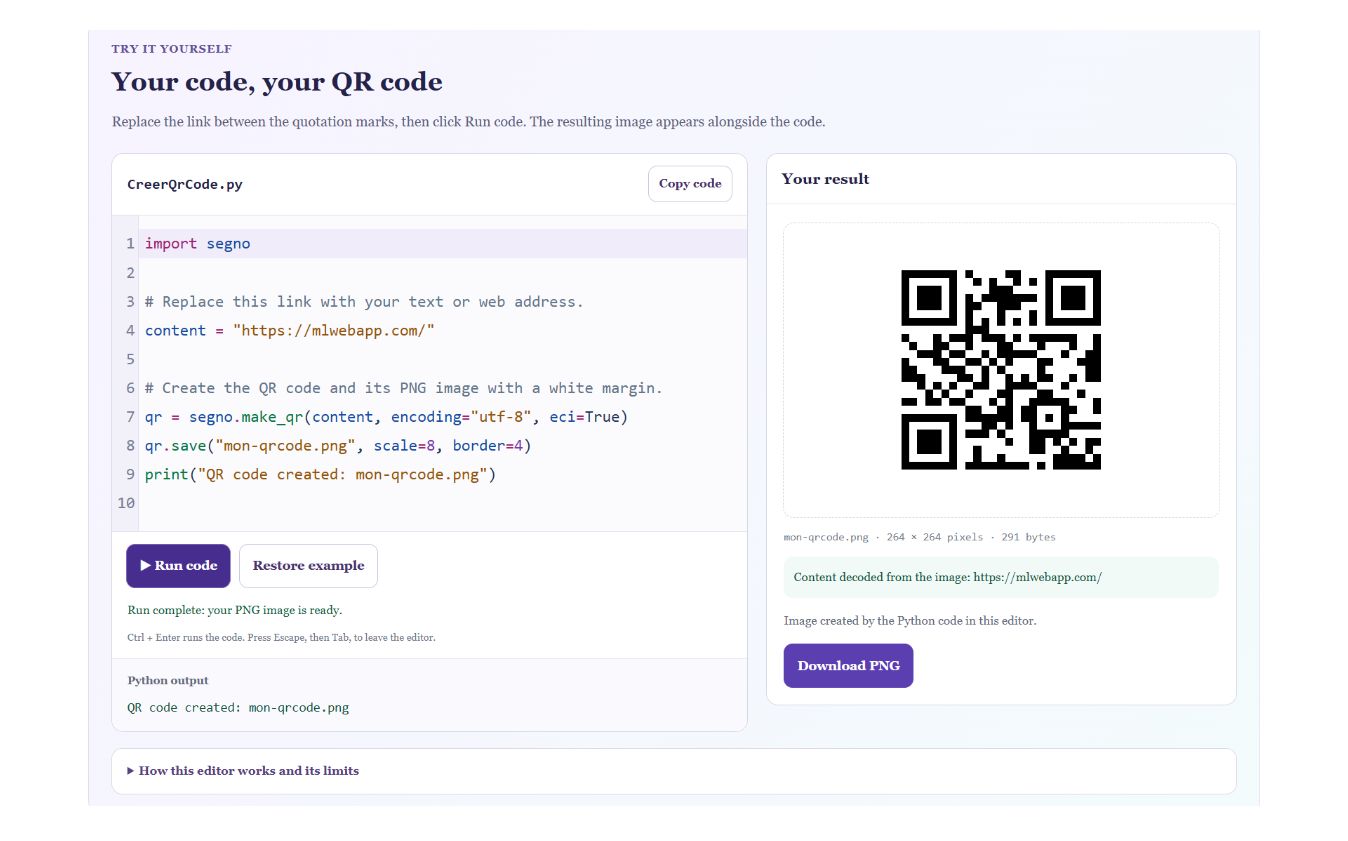
Create a QR code with Python: run the example
In the line content = "https://mlwebapp.com/", replace only the text between the quotation marks. Keep the quotation marks, then click Run code. The first run may take a little time; later runs reuse the Python runtime already loaded.
The image appears under Your result. Content decoded from the image shows what an independent reader actually decoded. Compare that text with your input before downloading the file.
Understand the five Python statements
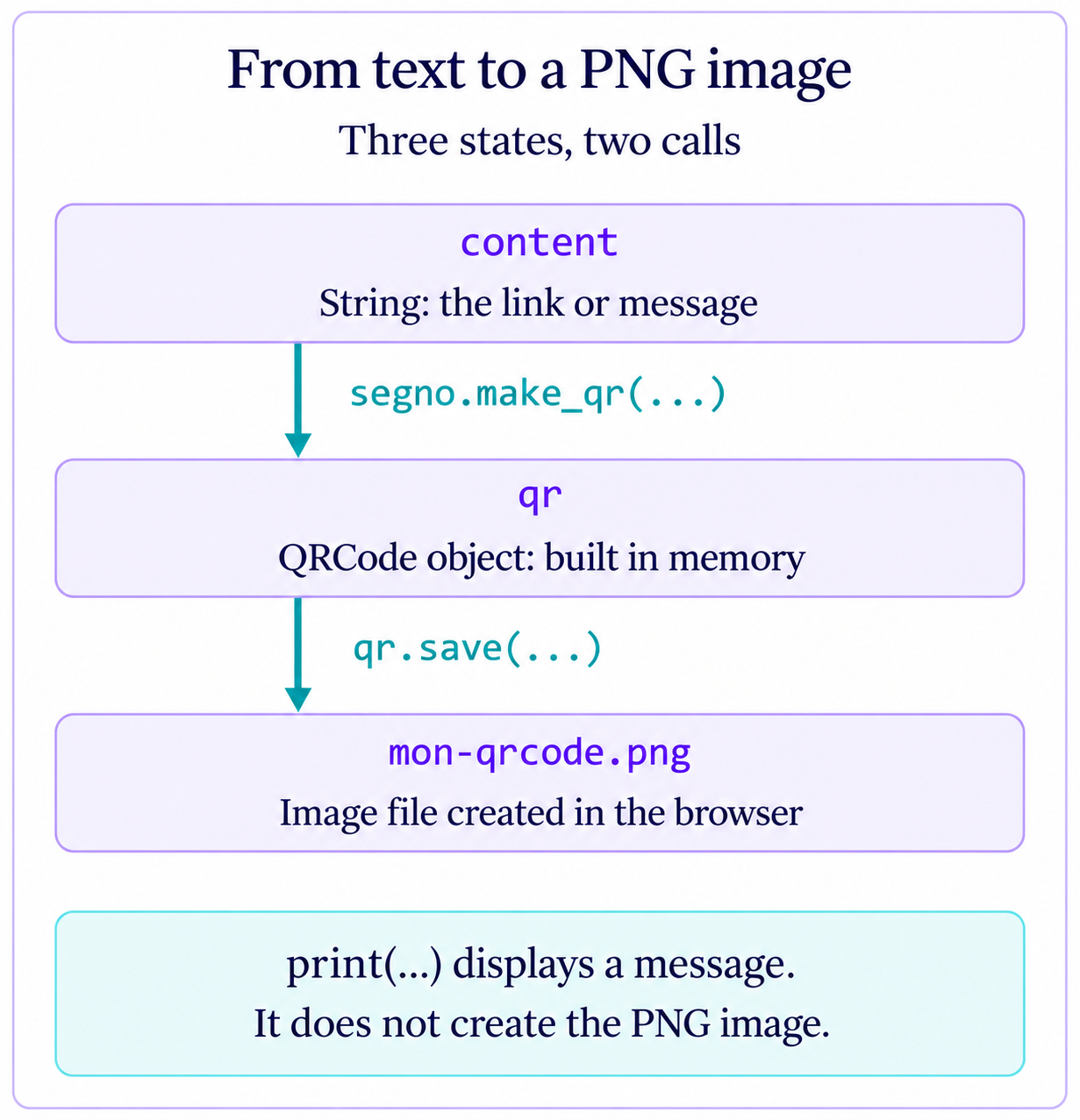
To create a QR code with Python, distinguish three things: the text you want to share, the object that represents the QR code and the saved image file. The diagram shows when each one is created. Expand each statement below to examine its role.
1. import segno: make the library available
A library provides reusable code. Here, import lets the program use Segno through the name segno. This statement makes its functions available; it does not create a QR code or an image yet.
Segno is already included in this article’s editor. If you copy the program into another Python environment, the library must be installed there too. ModuleNotFoundError means that the environment cannot find the module; changing the address to encode will not fix that problem.
2. content = "...": choose what the reader will retrieve
content is a variable name. The = sign binds it to the string on the right. The quotation marks delimit that string in the program; they are not part of the encoded message.
With "https://mlwebapp.com/", the QR code contains a web address. With "Hello from Python", it contains text. In the first case, the image does not contain a copy of the website: opening the destination still depends on the link working and the phone having a connection.
3. qr = segno.make_qr(...): build the QR code in memory
The dot in segno.make_qr identifies a function in the Segno module. The call takes the content to encode, builds a standard QR code and returns a QRCode object. The variable qr refers to that object; no PNG file has been saved yet.
encoding="utf-8" specifies how the text is represented, including accented and Arabic characters. eci=True requests an encoding indicator inside the QR code. Not all readers support ECI: checking the decoded text on this page is useful, and you should also test it with your phone. These options are described in the Segno API documentation.
4. qr.save(...): create the PNG file
save is a method of the qr object. It saves a representation of that object to the file named mon-qrcode.png. The .png extension selects the image format here. In this editor, the file is first created in the browser; the download button then lets you save it to your device.
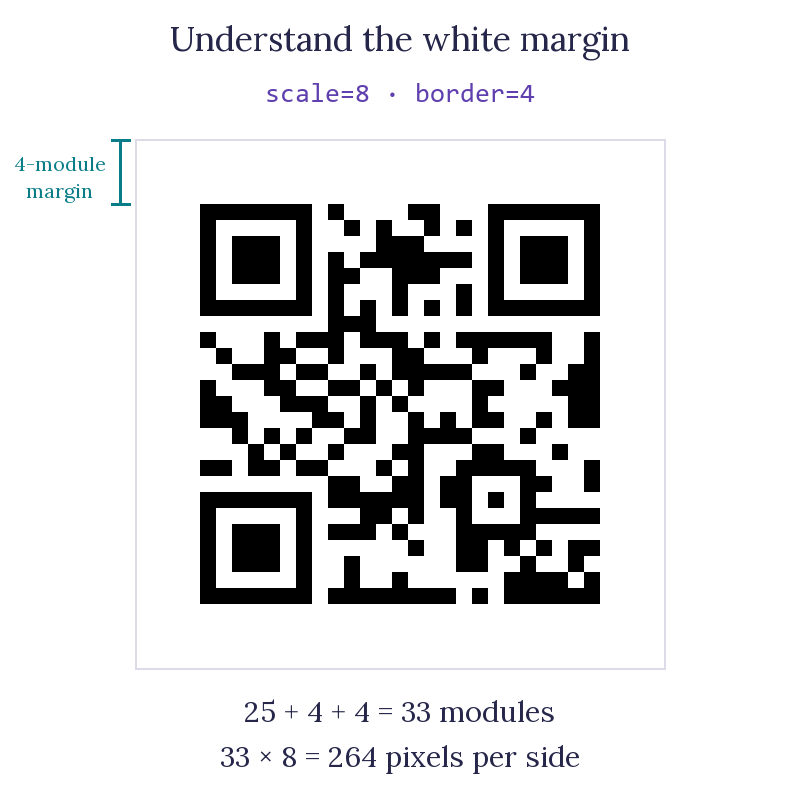
scale=8 gives each module—the small square in the grid—a size of eight pixels. border=4 keeps a white margin four modules wide on each side. These are separate settings: enlarging the modules changes the image dimensions, while keeping the margin preserves clear space around the pattern.
5. print(...): display a confirmation without creating the image
print writes a message under Python output. It runs after save in this example. If saving raises an error, the program stops before it reaches this message.
The filename in the message is text chosen by the programmer. It does not control where the image is saved. If you change the filename in save, update the message as well so that the confirmation remains clear.
The button runs the Python program shown in the editor. If you change it after a run, run it again to update the result. The built-in reader decodes the resulting image independently of the print message: compare that decoded content with what you intended to encode.
Change the content and size of the QR code
To create a QR code with Python that contains a message, replace the link with "Hello from Python", then run the code again. Check that the text decoded from the image matches your new message. You can also try accented text while keeping the encoding options.
The scale parameter sets the number of pixels used for each small module. Change 8 to 12 to produce a larger image. This enlarges the pattern; it does not change the encoded text.
The border parameter sets the clear margin around the code, measured in modules. Keep border=4 in this example: this space helps the reader distinguish the QR code from its surroundings. The settings and margin are explained in the Segno documentation on image output.
QR code with Python: three guided experiments
These experiments show what actually changes when you create a QR code with Python. Restore the example and change one thing at a time. Before each run, predict the result; then compare your prediction with the output and the text decoded from the image.
Change the confirmation message
Replace only the final statement with print("Hello!"). Should the QR pattern change? Run the code, then open the explanation.
Show the explanation for the first experiment
The text output becomes Hello!. The decoded content remains https://mlwebapp.com/, because the variable content and the call to save are unchanged. In the verified run, the saved image was identical: displaying a different message does not rebuild the QR code.
Enlarge the image without changing its content
Restore the example, then replace scale=8 with scale=12. Compare the dimensions displayed below the image and the decoded text.
Show the explanation for the second experiment
With the starting address and the settings used here, the verified files measure 264 × 264 and 396 × 396 pixels, respectively. Their decoded content is identical. The matrix is 25 modules wide; adding a four-module margin on each side gives 33 modules. Multiplying 33 by 8 or 12 gives the PNG dimensions. Different text may require a different matrix size.
Move an assignment: why line order matters
Restore the example. Immediately after the line calling segno.make_qr, add content = "Hello from Python", then run the code. Will the reader retrieve the original link or the new message?
Show the explanation for the third experiment
It retrieves the original link. The qr object was built from the value available when the function was called. Reassigning content afterwards does not change that object. To encode the new message, put the assignment before the call to segno.make_qr, then run the code again. This behavior was verified by comparing the resulting images.
You can now explain a useful distinction: changing text, rebuilding an object and saving a file are three separate operations. Their effects depend on which statements run and in what order.
Download and check your image
After a successful run, click Download PNG. The file is not saved automatically to your computer. You can then add it to a document, poster or presentation.
Test the image with a QR reader on your phone, at the size and on the medium you intend to use. Check the suggested address before sharing the QR code. A link may stop working if its destination page is removed or moved.
Fix common errors
- Python reports SyntaxError. Check the quotation marks and parentheses. The text must remain a string enclosed in quotation marks.
- No PNG appears. Keep the call to
qr.saveand a filename ending in.png. This editor does not display SVG files. - The decoded text is incorrect. Restore
encoding="utf-8"andeci=True, then run the code again. Check the margin and contrast too. - Loading fails. Check your connection and try again. The first run downloads Python; the Stop button lets you interrupt an operation in progress.
Restore example resets the starting code. You can also copy your program before changing it.
What stays in your browser
The code you enter runs in an isolated space in this browser. This editor does not send it to WordPress. The initial connection to jsDelivr loads the Python runtime. The code and images are lost when you reload or close the page: download any result you want to keep.
The editor displays the first PNG created in its working directory. It processes up to three files, limited to 2 MB per image and 4,096 pixels per side. A computation lasting more than ten seconds is stopped. These limits keep the editor suited to a small example within an article.
A QR code shares its content with anyone who can scan it. Choose which information you want to make available.
Keep practicing Python
You have created a QR code with Python by changing a variable, calling a function and saving its result. To explore cell execution and available variables, open the Python lab on cells and memory. Segno is included in this article’s editor; the general lab has its own environment.
For more about standard QR codes, variants and supported settings, see the official Segno documentation. The Pyodide documentation explains how Python runs in the browser.
