Merge PDF files with Python: put your documents in order

Merge PDF files to bring the documents for an application or other submission together in one file, in your chosen order. Select your documents below, run the short Python program, then download the resulting PDF. You can use the tool without installing Python.
The code explained
Merge PDF files with Python: understand the code
The first cell prepares pypdf and is read-only. It runs automatically before merging: if the library is already available, it does not reinstall it. The install_pypdf() function is provided by this tool and prepares only the approved version of that library. The merging program in the next cell remains editable.
To merge PDF files, the program uses pypdf, a Python library for working with PDF pages. The tool supplies the files list: it contains the selected documents in the order shown. Use the arrows beside each name to change that order before running the code.
from pypdf import PdfWriter: prepare to create the document
This statement imports PdfWriter, which assembles the new PDF. The library is available in this editor after the preparation cell has run. The official pypdf documentation explains how to add documents with append.
with PdfWriter() as merger: open the document to build
merger refers to the document being assembled. The with block closes its resources on exit. The indented lines prepare and then save the PDF.
for file in files and merger.append(file): follow your order
The loop goes through the list from the first document to the last. Each call to append adds all the pages of the current PDF after the preceding pages. A two-page document therefore keeps its two pages together and in sequence.
A file’s name does not determine its position: the order displayed in the list does. To review lists and loops, see Python basics.
merger.write("dossier-fusionne.pdf"): save the result
This line creates the output file in the browser’s workspace. The tool then makes it available through Download merged PDF. You can change the name between the quotation marks while keeping the .pdf extension.
print(...): display a confirmation
print displays a message in the Python output area. It does not produce the PDF: write creates the file. If you change the program, run it again to get the corresponding result.
Download and check the merged PDF
What order should you choose to merge PDF files?
Before you merge PDF files for a submission, check the order requested by the recipient. A document’s name and its position in the list are separate things: Move up and Move down change its position without renaming it.
Once merging is complete, the result panel shows the PDF’s name, its page count and a download button. Open the downloaded file to check the documents and their order. For example, a one-page presentation followed by a two-page supporting document produces three pages in total.
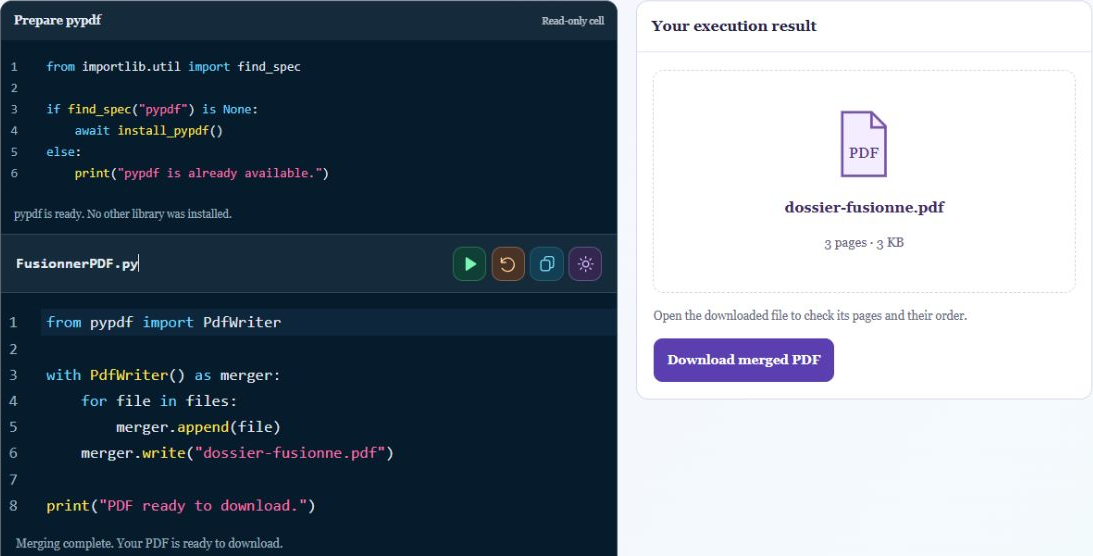
When you change the code or the document order, the previous download link is removed. This prevents you from downloading a PDF that no longer matches your selection. Run the program again to display the updated result.
The originals on your computer remain unchanged. Your selection and the generated PDF are cleared when you reload or close the page, so download any result you want to keep.

How can you merge PDF files without changing the originals?
When you choose a file, the tool reads a copy into the browser’s memory. The program works on that copy and produces a new document. It does not receive permission to write to the original file. Changing the output name in the code does not rename the documents stored on your computer.
When you download the new file, your browser chooses where to save it according to its usual settings. If a document with that name already exists, check the name actually saved. To assemble another set of documents, change the selection or its order, then run the merge again.
If merging does not work
Choose at least two ordinary PDFs without passwords, within the limits shown in the tool. An unreadable or protected file may interrupt the merge; the message appears below the code. Restore example puts the original program back while keeping your selected files.
To merge PDF files that are large, try a smaller selection if the browser runs out of memory or execution stops. The page count alone does not predict a file’s size: scanned pages may contain large images.
This operation joins pages; it does not automatically compress scans or recognize text in images. Fillable forms and signatures need appropriate handling: keep their originals and check the final document. The scope and limits of pypdf explain these distinctions.
Can you merge PDF files containing scanned pages?
Yes, if the library can read the files and they fit the tool’s limits. A scanned page remains an image in the assembled document. If you could not select its text before merging, this operation alone will not make it selectable. Recognizing characters in an image would require a separate optical character recognition (OCR) step.
Are duplicate pages removed when you merge PDF files?
No. The program adds pages from the supplied files; it does not compare their contents. A page present in two documents may therefore appear twice in the result. Removing an item from the list excludes the whole document. Removing just one page within a document would require selecting which pages to keep, which this short example does not offer.
The pypdf availability check applies only to this page’s Python engine. A library installed in another notebook or on your computer is not automatically available in this browser. Within the same session, runs reuse the prepared library. After reloading, the new workspace needs to be prepared again.
For another short example you can run directly in the page, try Create a QR code with Python.
